Should You Delete AI Blog Posts That Get No Traffic?
Google calls deleting content a last resort. Most automated posts that get no traffic should be improved or merged into a stronger post first. Here is how to decide, what status a removed URL should return, and what our own delete button does and does not do.
Blogtastic Team · October 29, 2026
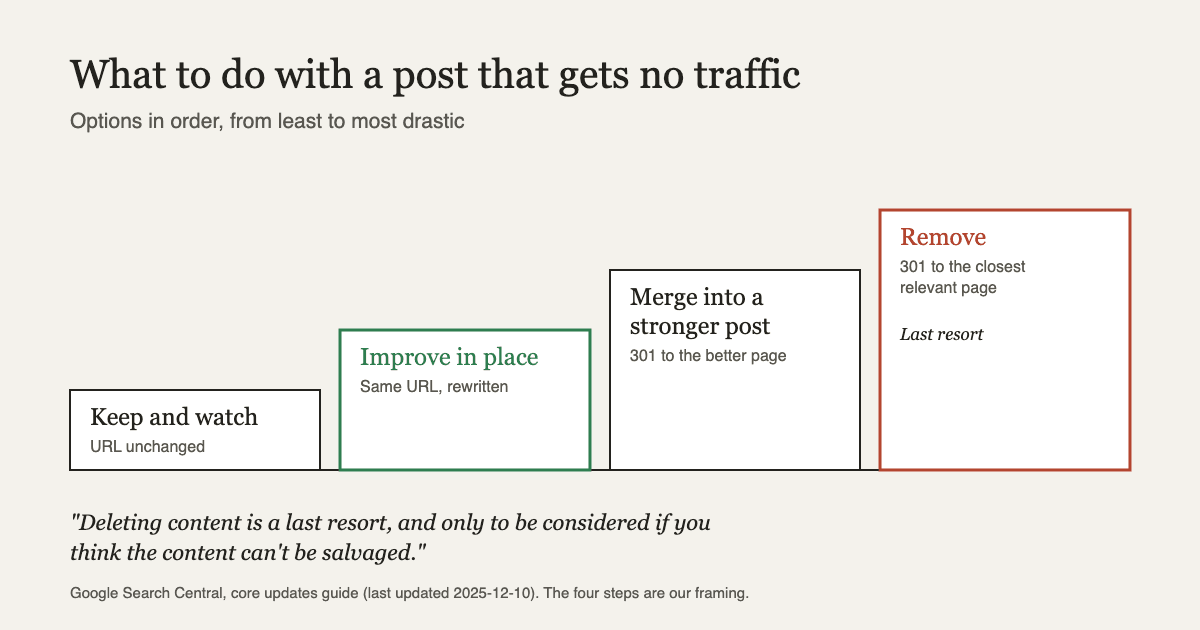
Usually not as a first step. Google's guidance on core updates says "deleting content is a last resort, and only to be considered if you think the content can't be salvaged." A post with no traffic is more often worth improving, or merging into a stronger post with a redirect, than deleting. Removal makes sense when a post cannot be made useful and nothing on your site should take its place.
The same Google page adds a harder point for anyone running automated content. If you are thinking about deleting whole sections, "that's likely a sign those sections were created for search engines first, and not people." In that case, Google says, deleting the unhelpful content can help the rest of the site. So the useful question is not how old a post is or how much traffic it gets. It is whether the post helps a reader, and whether you can make it help one.
Key takeaways
- Google's order of preference: improve first, delete last. Its core updates page also warns against "quick fix" changes made because you heard something was bad for SEO.
- Deleting posts to make a site look fresh does not work. Google's helpful content page asks whether you are removing older content to make your site "seem 'fresh?'" and answers "(No, it won't)".
- If a post goes, give its URL a page-level 301 to the closest relevant page. Google lists "consolidating several pages into one" as a legitimate reason to redirect. A 404 and a 410 are treated the same by Google's crawlers.
- Check Bing before you remove or noindex anything. A post with no Google clicks may still get Bing traffic, and a noindex tag drops it from Bing too.
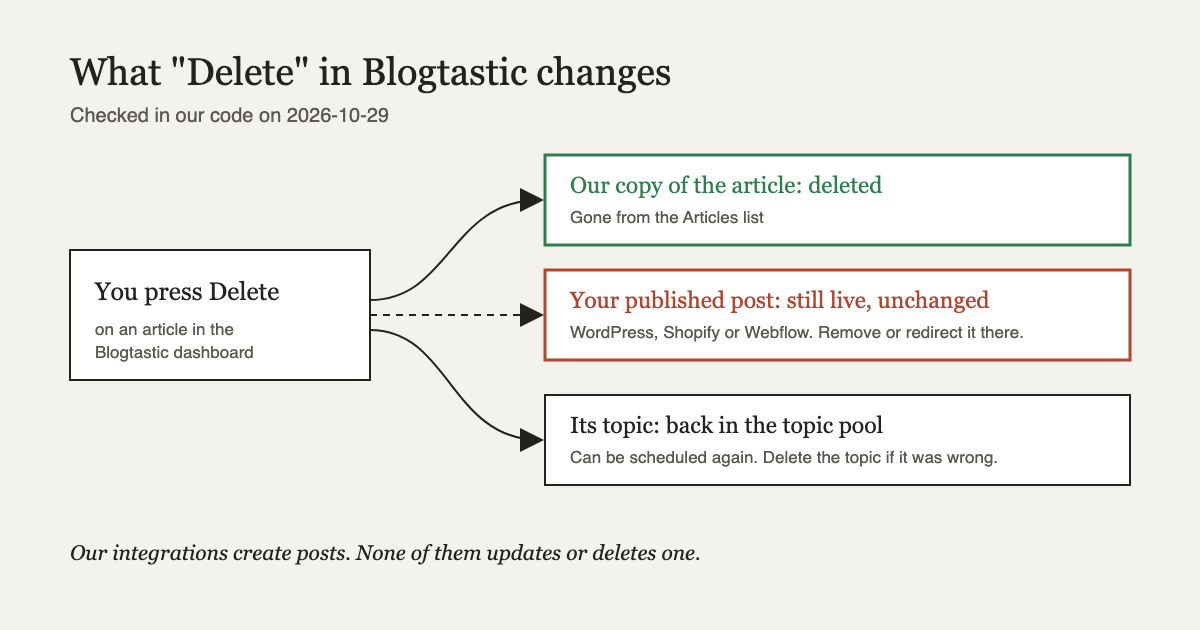
- In Blogtastic, deleting an article removes our copy only. A post already published to WordPress, Shopify, or Webflow stays live until you remove it there.
Does deleting weak posts help the rest of your site?
It can, but only when those posts were made for search engines rather than readers, and Google treats it as the last option rather than the first. The relevant text is in the "Things to keep in mind when making changes" section of Google's core updates guide (page last updated 2025-12-10). It asks you to avoid quick fixes, to consider "rewriting or restructuring your content," and only then mentions deletion. That advice is written for sites that lost rankings in a core update, not for every post that never found readers, but it is the most direct thing Google's documentation says about deleting content.
The reason deletion can help at all is that Google does not judge pages entirely one at a time. Its guide to ranking systems says the systems work mainly at the page level, but "site-wide signals and classifiers are also used." It also says poor site-wide signals do not mean every page on the site will rank poorly. That is a reason to take a large set of weak automated posts seriously. It is not a promise that deleting them will lift anything, and the same core updates page says "there's no guarantee that changes you make to your website will result in noticeable impact."
Where automated blogs get into real trouble is volume. Google's spam policies (last updated 2026-08-28) define scaled content abuse as "when many pages are generated for the primary purpose of manipulating search rankings and not helping users," which applies "no matter how it's created." If a big share of your automated posts would fit that description, pruning is part of the fix. If you have a handful of posts that simply never found an audience, it probably is not.
Will removing old posts make my site look fresh?
No. Google's helpful content page (last updated 2026-10-05) asks it directly: "Are you adding a lot of new content or removing a lot of older content primarily because you believe it will help your search rankings overall by somehow making your site seem 'fresh?' (No, it won't)". The same list asks whether you are "changing the date of pages to make them seem fresh when the content has not substantially changed."
Both questions matter for automated blogging, because a tool that publishes every day makes it tempting to treat old posts as disposable and recent dates as a signal. Neither is how Google describes its systems. An old post that still answers its question well is not a problem. A new post that answers nothing is.
How do you decide whether to keep, fix, merge, or remove a post?
Decide by what the post does for a reader, using traffic only as a reason to look closer. We use four options, in order from least to most drastic:
| Option | When it fits | What happens to the URL |
|---|---|---|
| Keep and watch | The post is accurate and useful, it is just new or the topic is small | Nothing |
| Improve in place | Real search demand, but the post is thin or wrong in places | Same URL, substantially rewritten |
| Merge into a stronger post | Two or more posts answer the same question | Weaker URLs 301 to the stronger post |
| Remove | Cannot be made useful, or is off-topic for your business | 301 to the closest relevant page |
Merging deserves more use than it gets. Automated pipelines are good at producing several posts that answer nearly the same question in slightly different words, and Google's ranking systems guide says its deduplication systems will show "only the most relevant results to avoid unhelpful duplication" anyway. Folding the useful parts of the weaker posts into the best one gives you a single page worth reading instead of several near-copies.
Before calling anything a failure, give it time and look at more than one search engine. Pull page-level clicks and impressions from Google Search Console's Performance report, then the same pages from Bing Webmaster Tools. We suggest not judging a post until it has been indexed for at least three months. That number is our suggestion, not a Google figure, and a fast-moving topic may need a shorter window.
Should a removed post return a 404, a 410, or a 301?
If there is a related page a reader would want instead, use a permanent 301 redirect. If there is not, Google's crawlers handle a 404 and a 410 in the same way. Google's documentation on HTTP status codes (last updated 2026-02-04) says "all 4xx errors, except 429, are treated the same," and that the indexing pipeline removes a previously indexed URL that returns one. So choosing 410 over 404 to speed things up in Google is not supported by the documentation.
For redirects, Google's redirects guide (last updated 2026-04-14) says a permanent redirect is a signal that "the redirect target should be canonical," and recommends server-side redirects where you can set them up. Its spam policies list "consolidating several pages into one" among legitimate reasons to redirect. Point each removed URL at the page that best answers the same question. On our own sites we 301 every removed URL rather than leaving bare 404s. That is our rule, not a Google requirement.
A noindex tag is the other option: the post stays on your site for readers who find it through your navigation, but Google drops it from results, according to its noindex documentation. Two cautions. Google only sees the tag if robots.txt does not block the page. And Bing supports noindex as well, so a page you noindex to clean up Google also disappears from Bing. That is why we check Bing Webmaster Tools before using it.
How do you remove or redirect a post on Shopify, WordPress, or Webflow?
Remove it in the platform itself, then add the redirect where the platform manages redirects. One Shopify detail catches people out. Shopify's help page on URL redirects says "you can redirect only from broken URLs," and that if the URL still loads a valid page, the redirect will not work. So on Shopify, delete the blog post first, then create the redirect from its old URL. The same page gives the limit as 100,000 redirects per store, or 20,000,000 on the Plus plan, which is enough for any blog.
On WordPress and Webflow, use the redirect setting your site already has, from your host or from an SEO plugin if the platform has none of its own. Whichever method you use, open the old URL afterwards and confirm it lands on the new page with a 301.
What does deleting an article in Blogtastic do?
It deletes our copy of the article, and nothing on your website. We checked this in our own code on 2026-10-29. Our WordPress, Shopify, and Webflow integrations send a new post when an article is published, and none of them has an update or delete step. So if a post is already live on your site, pruning it means removing or redirecting it in your CMS. Deleting it in the Blogtastic dashboard will not touch it.
Two more details matter if you prune with Blogtastic connected:
The topic comes back. Deleting an article puts its topic back into your active topic pool. With auto-schedule on, that topic can be picked again and a new article written on it. If you are removing a post because the topic was wrong for your business, delete or edit the topic too, on the Topics page.
Topics can repeat under auto-schedule. In our current code, a topic that auto-schedule picks stays in the pool after its article is written, so the same topic can come up again on a later day. That is one way an automated blog ends up with two posts on one question. Until we change it, check new posts against your existing ones, and merge any near-duplicates using the table above. Turning auto-schedule off and scheduling topics by hand avoids the repeat, because a topic you schedule manually is taken out of the pool.
Neither of these is a reason to avoid automation. They are a reason to keep a person in charge of what stays published, which is the same point our article on adding human review to an AI content workflow makes about what gets published in the first place. The features page lists what you can change before an article goes out, and the pricing page shows the monthly article caps that set how many posts you will be reviewing. The Shopify blog automation page covers that integration.
Have we pruned anything on this blog?
Not yet. This is the seventh article on this blog, and the oldest one was published on 2026-09-22, about five weeks ago. That is well under the three-month window suggested above, so none of them has a fair amount of data behind it. We have not removed or merged any post here, and we are not going to claim results from pruning we have not done.
What we have done is the cheaper version of pruning: cutting before publishing. Every post here is checked against its sources before it goes live, and claims that could not be backed have been cut at that stage, as our article on AI content and E-E-A-T describes. Fixing a draft is easier than deciding later whether a live post deserves to stay.
This article was drafted with AI and checked on 2026-10-29 against the documentation linked above and against our own code. It stayed unpublished until a person reviewed and approved it.